H36
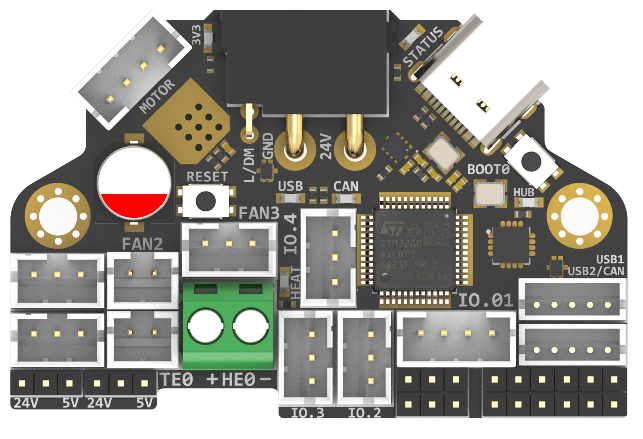
Since there is no 125 degree Celsius USB-HUB chip, the 125 degree Celsius operating environment is limited to CANBUS mode;
Klipper currently does not support 125 degree Celsius accelerometers, so the 125 degree Celsius operating environment does not include accelerometers. The default version of H36 is ADXL345, which has a maximum operating temperature of 85 degrees Celsius. The 105 degree Celsius ADXL345-EP version is optional, but it is more expensive.
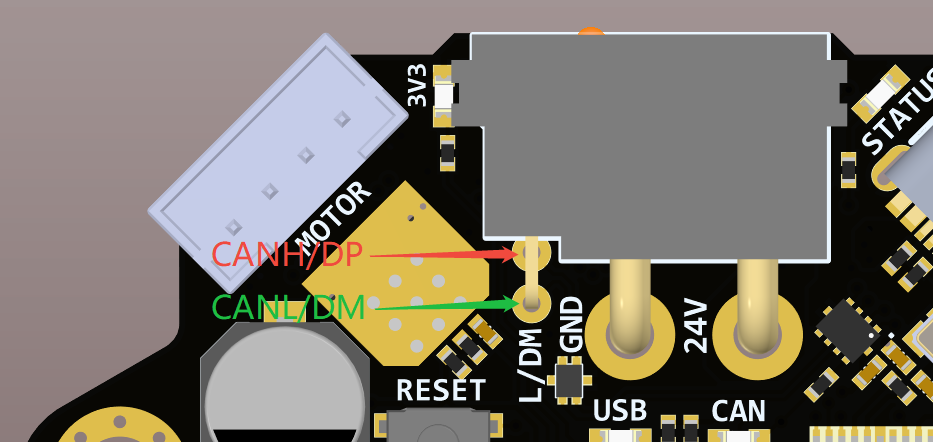
Sorry for the same silkscreen error on V1.2 and V1.3:
The L/DM and H/DP markings on the back of the XT30 connector are reversed, the top layer is correct.
To avoid confusion, please refer to the following instructions:
Introduction
H36 Combo V1 is a newly designed high temperature tool board running Klipper firmware. Based on STMG0B1T3, the maximum operating temperature can reach 125 degrees Celsius (CAN only). It also provides two communication methods: CANBUS and USB. The onboard USBHUB has up to two USB interfaces (or one CAN and one USB), which can be used to connect to the IDM Scanner Leveling Sensor camera, etc.
Version Notes
V1.1
- Add Driver NTC
- Add 3.3V/5v monitor
- Add 24v monitor
\-------------------------------------
V1.2
- Change to XT30
- Add reserve protection
- Fix can/usb indicate
\-------------------------------------
V1.3 (Currently Available)
NoteV1.3 only makes hardware changes and does not affect any software configuration.
- Add level_shift to FAN_TACH
- Fix silk mark
- Add jumper resistor from USB-C to STM32
- ADXL345-EP optional
- Change the LDO chip to TLV75733
- New mass-produced cables (Mould Forming)
Features
- STM32G0B1T3 MCU, up to 125 degrees Celsius, supports Klipper Firmware
- 6-layer PCB design, all solid capacitors and tantalum capacitors, better heat dissipation
- Onboard IO controlled CAN/USB switch,
- Onboard RESET and BOOT0 buttons for easy firmware update
- Fan control/heating both use independent high-power MOS, safer and lower heat generation
- Onboard 5V@3A DC-DC, 5V peak load can reach 15W
- XT30 interface, custom cable comes with the board
- Onboard USB2.0 HUB, 3x USB2.0 interface (one of which is connected to MCU)
- Support CAN / USB2.0 connection
- Onboard TMC2209
- 3x 3pin Fans, 3x IO with level converter, 1x RGB,1x Heat, 1x thermistor,1x status LED
- ADXL345 Accelerometer onboard
- USB-C onboard for Firmware update
Application
Print Head with NEMA14/36mm Motor
Hardware Specification
Function | H36 Combo V1 | SB Combo V2 | SB TH CAN V1.3 |
|---|---|---|---|
Microcontroller | STM32G0B1T3 | STM32F072CBT6 | STM32F072CBT6 |
Accelerometer | ADXL345 | ADXL345 | ADXL345 |
USB Port | 2 + 1 (For MCU) , Powered by CH334P | 2 + 1 (For MCU) + 1(on aux board), Powered by CH334P | 1 |
CANBUS | 1 + 1 (For MCU) | 1 + 1 (For MCU) | 1 |
Fan | 4 (1x2Pin, 3x3Pin) | 3+2 (on aux board) | 2 |
Heating output | 1 | 1 | 1 |
Temperature measurement | 1 (PH2.0 connector) + 1 (on board thermistor) | 1 (PH2.0 connector) + 1 (on board thermistor) | 1(PH2.0 connector) |
Voltage monitoring | 5V, 24V | 5V, 24V |
|
Motor drive | TMC2209 | TMC2209 | TMC2209 |
Signal input and output | 5 (PH2.0) + 7 (pin header) | 3 | 3 |
RGB light strip control | default 2, up to 5 | 1 + 1 (on aux board) | 1 |
Aux Board support | No | Yes | No |
Onboard mounting nut | No | Yes | No |
Operating Limits
The following values are tested at room temperature of 25°C. Please do not keep the highest peak value running for a long time!
Please do a good job of cooling the board in a higher temperature environment.
Stepper drivers | Up to 2.0A peak current |
|---|---|
Mosfets Outputs | HE0 up to 5A Max, Fan up to 0.5A each |
Input power voltage | 11V to 24V for VIN up to 10A Max |
Inputs/Outputs | Signal 20ma maximum, RGB power supply 1.5A total maximum |
5V and 3.3V current limit | 5V@3A Max,3.3V@0.8A Max |
Physical Connections
Pin Out
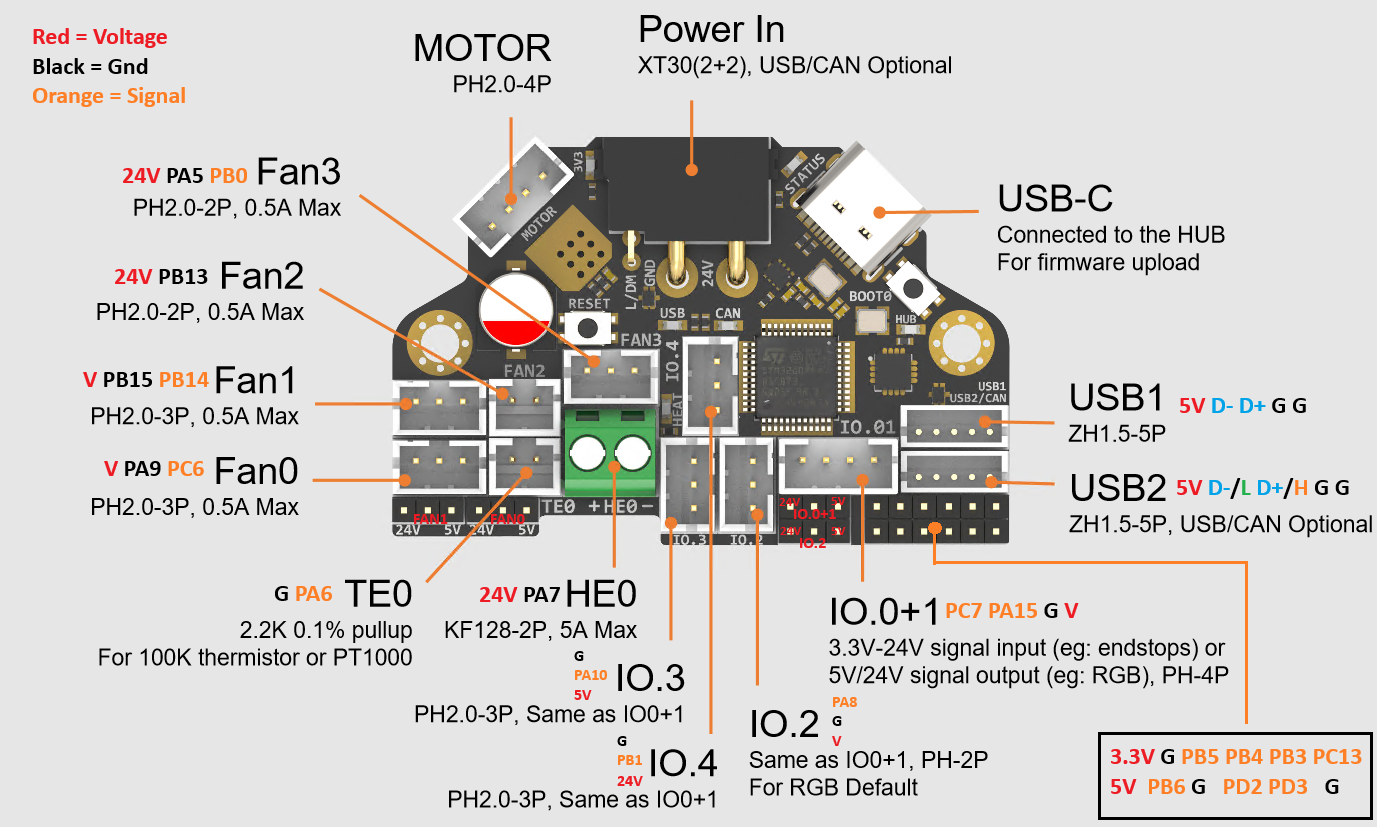
Thanks to Esoterical for creating this image.
IO.0: PA15
IO.1: PC7
IO.2: PA8
IO.3/RGB0: PA10
IO.4/RGB1: PB1
# IO.0 - IO.5 with level conversion (pull-up), it can be used as 5V/24V level input and output!


FAN0: PA9
FAN0_TACH: PC6 # Please make sure the feedback level does not exceed 5V!
FAN1: PB15
FAN1_TACH: PB14 # Please make sure the feedback level does not exceed 5V!
FAN2: PB13
FAN3: PA5
FAN3_TACH: PB0 # Please make sure the feedback level does not exceed 5V!

Heat: PA7
Thermistor (2.2k pull up): PA6

Driver_EN: PB7
Driver_DIR: PB8
Driver_STEP: PB9
Driver_UART: PC14
Driver_DIAG: PC15

ADXL345
spi_bus: spi2
adxl345_cs_pin: PB12
adxl345_spi_software_sclk_pin: PB10
adxl345_spi_software_mosi_pin: PB11
adxl345_spi_software_miso_pin: PB2

CAN_RX: PD0
CAN_TX: PD1

5V_Monitor: PA0
24V_MOnitor: PA4
Thermistor next to TMC2209 (4.7k pull up) : PA3

CAN USB switch: PA2
# logic Low = COM to A PORT  CANBUS
# Logic High = COM to B PORT  USB
Description Of Connections:
IO.0 and IO.1 are located in the same connector and can be used as XY endstops, and IO.2 can be used as a probe. In addition, IO.0 - IO.5 have level conversion (with pull-up resistors) , IO.01, IO.2 have voltage selectors (5V or 24V) pin header, IO.3 IO.4 have voltage selectors (5V or 24V) pads. All the IOs can be used as inputs or outputs, such as RGB ,Servo, Endstops, and can be configured according to your other needs.
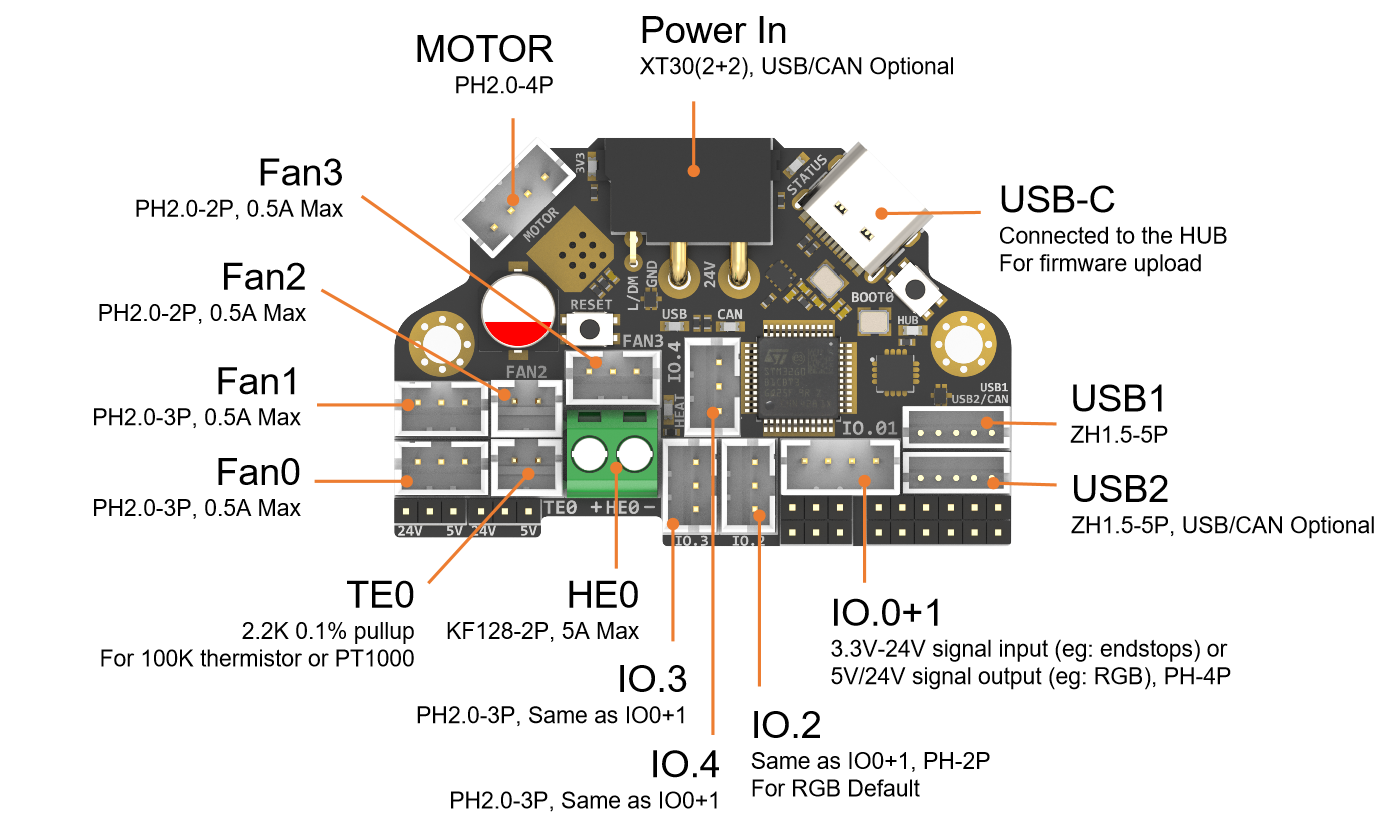
Connector | Pin | Default function | Altermate |
|---|---|---|---|
Power Input | USB (PA11,PA12)<br>CANBUS (PD0,PD1) | Power and communication input, USB 2.0 and CANBUS are optional, Determined by the level of PA2. |
|
Fan0 | FAN0: PA9<br>FAN0_TACH: PC6 | Mosfet Output, For 2/3 pins Fan, Default voltage = Depending on voltage selector. <br>(Header voltage selector) |
|
Fan1 | FAN1: PB15 <br>FAN1_TACH: PB14 | Mosfet Output, For 2/3 pins Fan, Default voltage = Depending on voltage selector. <br>(Header voltage selector) |
|
Fan2 | PB13 | Mosfet Output, For 2 pins Fan, Default voltage = VIN.<br> (Pad voltage selector) |
|
Fan3 | FAN3: PA5<br> FAN3_TACH: PB0 | Mosfet Output, For 2/3 pins Fan, Default voltage = VIN.<br> (Pad voltage selector) |
|
IO.0+1 | PA15, PB15 | Digital Input, For X Y endstop, Micro switch or Hall <br> (Header voltage selector) | Digital Output |
IO.2 | PA8 | Digital Input, For Z probe, Proximity switch or Klicky, etc. <br> (Header voltage selector) | Digital Output |
IO.3/RGB0 | PA10 | 5V Digital Output, 5V power supply default, For 5V WS2812/SK6812 RGB/Servo <br> (Pad voltage selector) | Digital Input |
IO.4/RGB1 | PB1 | 5V Digital Output, 24V power supply default, For 24V WS2812/SK6812 RGB/Servo <br> (Pad voltage selector) | Digital Input |
USB1 |
| USB2.0 | J2 |
USB2/CAN |
| USB2.0 or CANBUS 2.0, USB 2.0 and CANBUS are optional,Determined by the level of PA2. | J1 |
TE0 | PA6 | ADC input, 2.2K pull-up, head temperature measure |
|
HE0 | PA7 | Mosfet Output, Heating rod control, 5A Max |
|
MOTOR |
| For two-phase stepper motor, |
|
USB1, USB-C connector |
| Connected to the CH334PHUB chip, up to 4 USB2.0 devices (MCU/USB1/USB2/USB3) |
|
LED Indications:
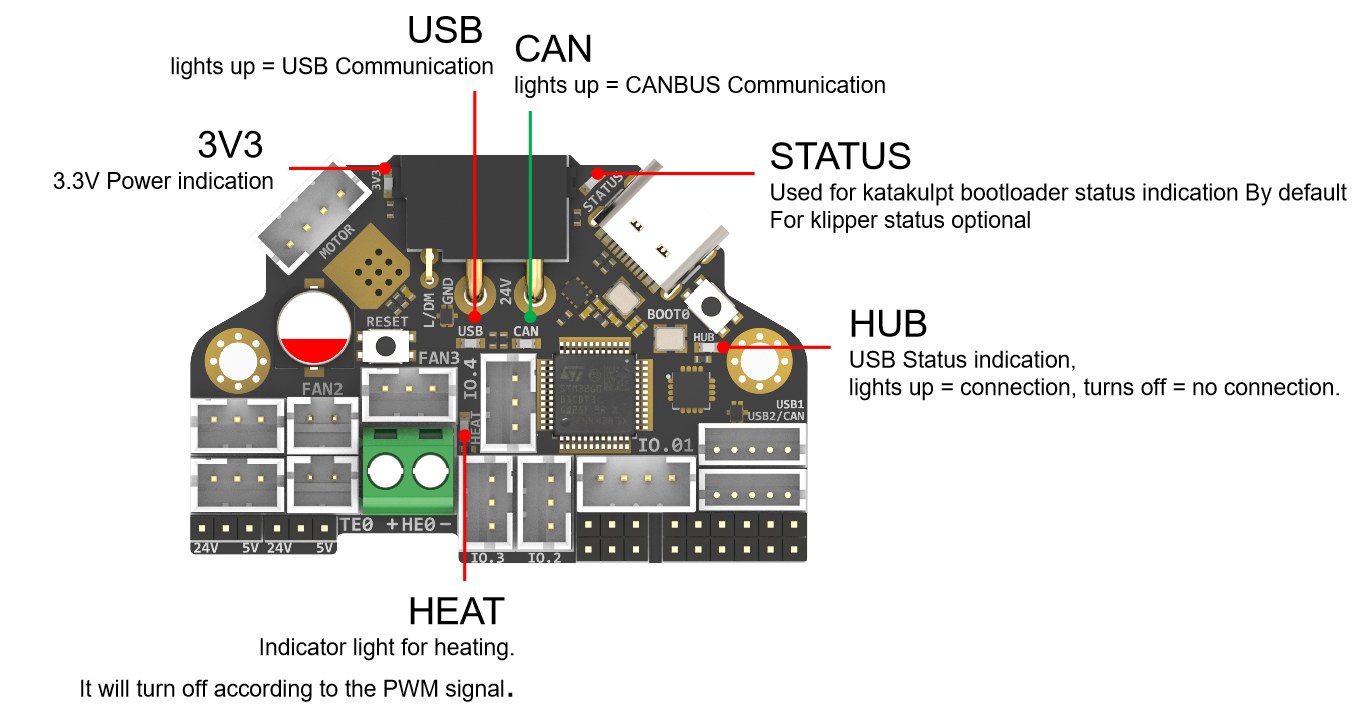
LED name | Indicate | Remark |
|---|---|---|
3V3 | Lights up: Power supply OK.<br>Turns off : Power supply failure. <br>3.3V is obtained by converting 24V to 5V through DC-DC and then to 3.3V through LDO, so there may be a short circuit/open circuit in 24V/5V/3.3V. | Red |
HUB | Lights up: The USB has at least one connection.<br/>Turns off: The USB has no connection. | Red |
STATUS | When using katakulpt | Red |
HEAT | Lights up or flashes according to the heating PWM | Red |
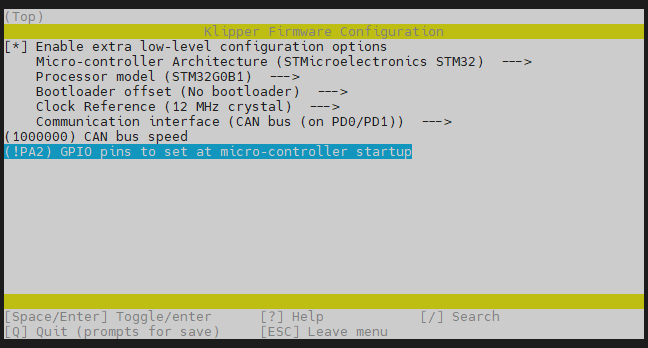
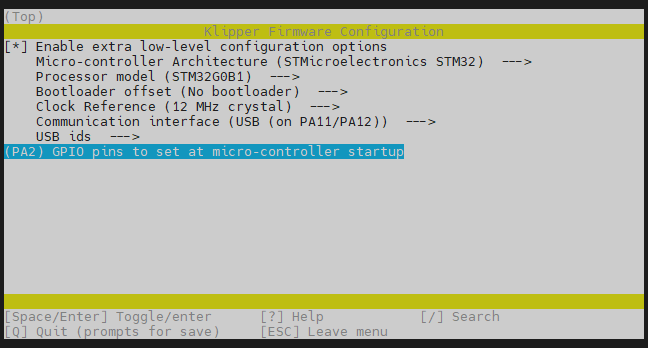
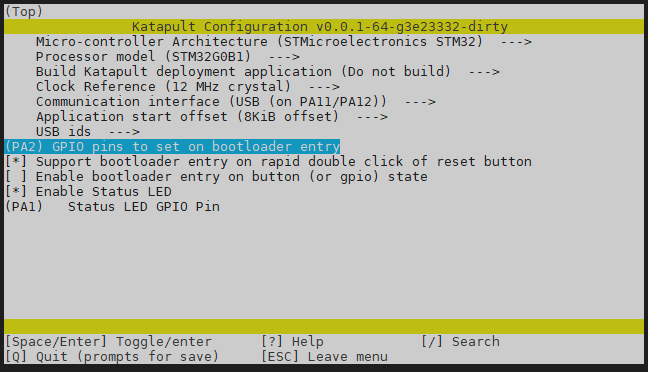
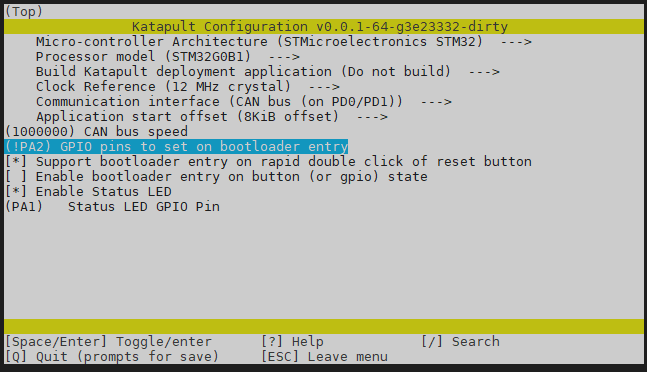
USB | USB communication Indicate, use "PA2" at the config menu | Red |
CAN | CAN communication Indicate, use "!PA2" at the config menu | Green |
USB / CAN Selection
XT30 and USB2/CAN both use CAN to communicate
XT30 and USB2/CAN both use USB to communicate
Header Jumpers:
IO.0+1 , IO.2 , Fan0 , Fan1 can select the power supply voltage through the jumper cap.
As shown in the figure, the two pins on the left are connected together for 24V, and the two pins on the right are connected together for 5V.
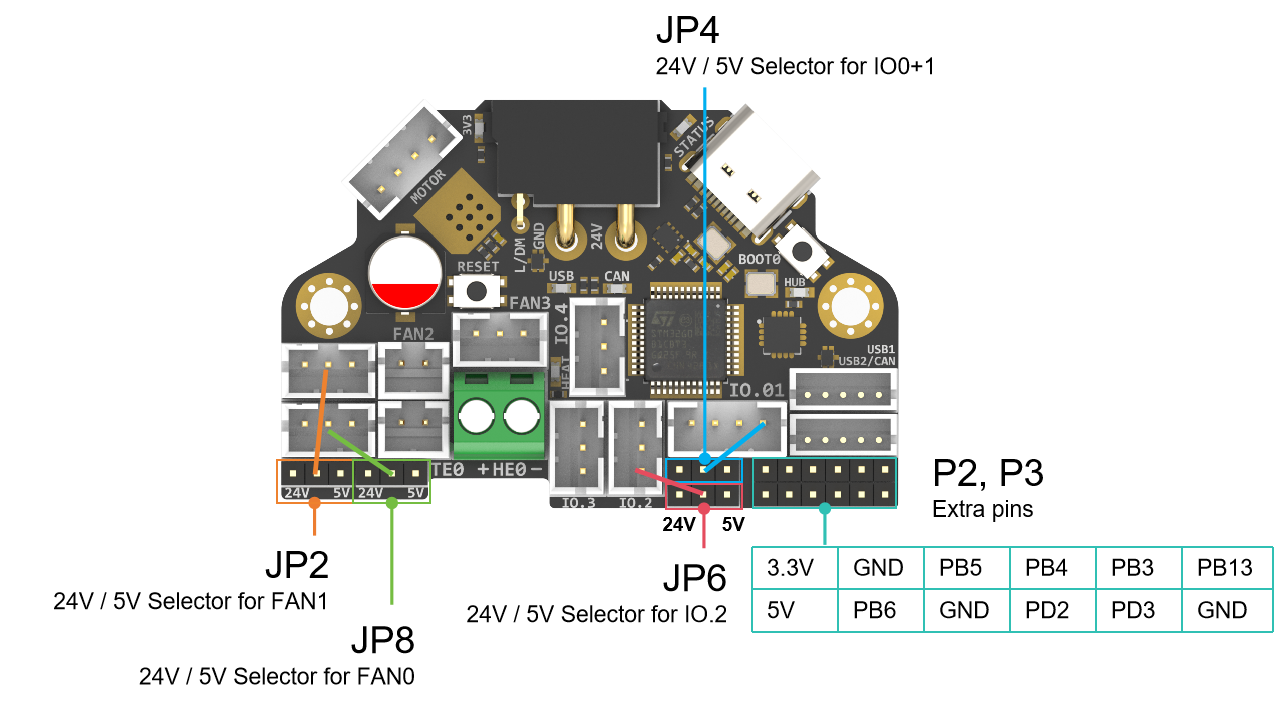
Please note that if these interfaces are used as outputs, the high-level voltage of the output is consistent with the voltage selected by the jumper. Please make sure that your peripherals can withstand the range. Generally speaking, only SSR in the accessories of 3D printers can withstand 9-36V control voltage.
Communication
Connection To Pi
SB combo V2 can be connected to Pi via USB or CANBUS. Select by PA2, refer to USB / CAN selection.
Via CAN
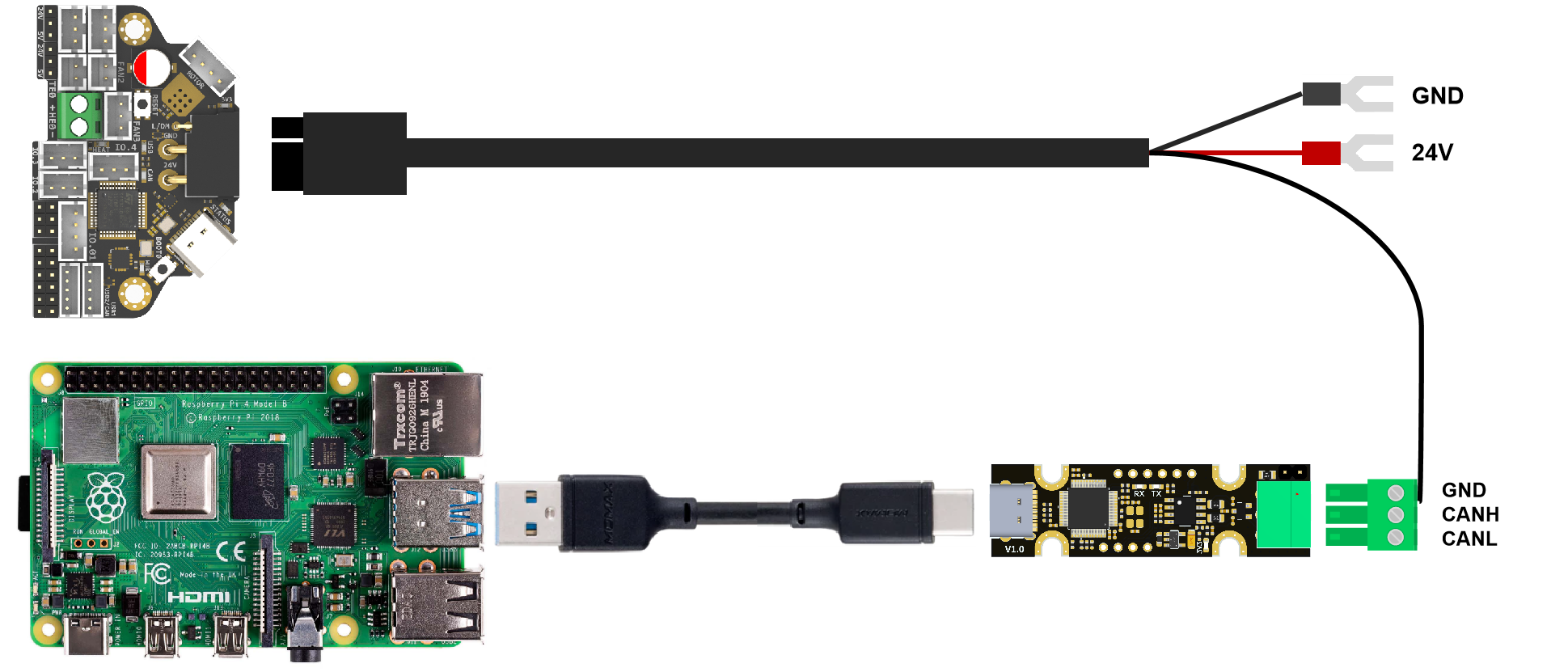
Since the Raspberry Pi does not have a CANBUS interface, it is usually connected only after the CANBUS interface is expanded through an expansion chip. Commonly used ones include the MCP2518 SPI to CAN module (CanHat), USB to CAN module (eg: UCAN), Klipper USB to CAN Bridge Mode, and a Linux host computer with a native CAN interface (eg: CM68).
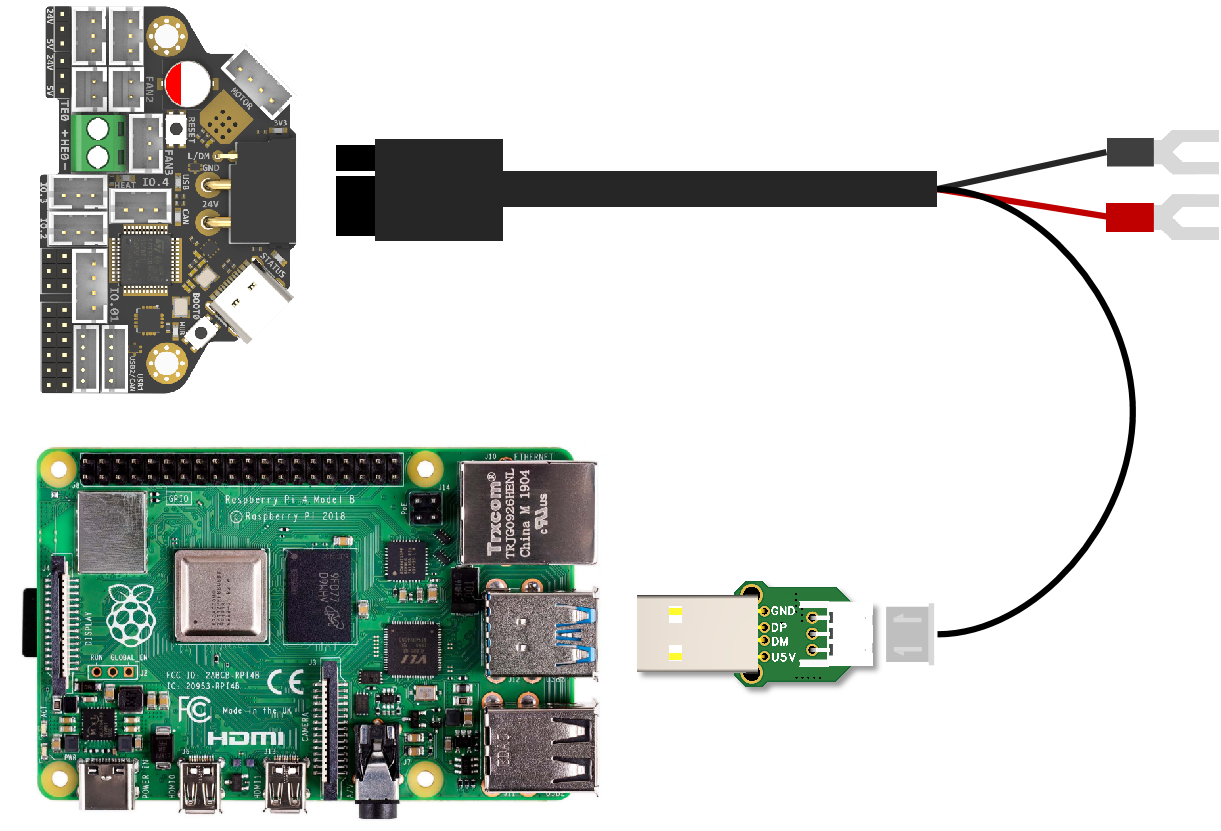
Via USB
When using USB connection, you can use the adapter board we provide to directly connect to the USB interface of PI.
Firmware Guide
Firmware Configuration And Compilation
With Katapult Bootloader
If you need to use a bootloader, we recommend using katapult, the following is not configured for reference:
For katapult use, refer to: https://github.com/Arksine/katapult
cd ~/katapult
make menuconfig
make flash FLASH_DEVICE=0483:df11
cd ~/klipper
make menuconfig
make
cd ~/katapult/scripts
#when use CAN communiction
python3 flashtool.py -i can0 -f ~/klipper/out/klipper.bin -u <uuid>
#when use USB communiction
python3 flashtool.py -d <serial device> -b <baud_rate>
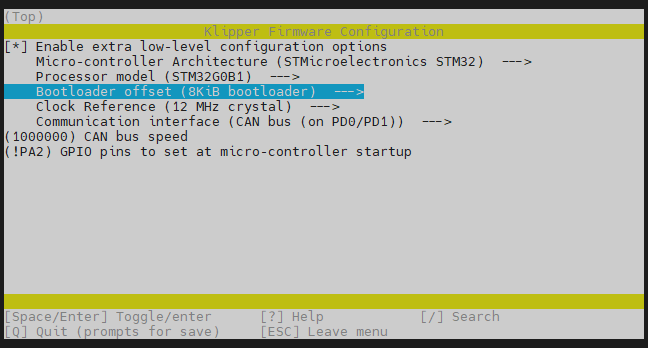
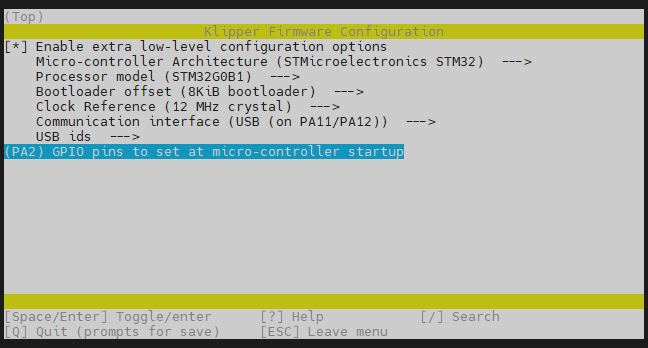
Klipper With No Bootloader
H36 uses the bootloader-free mode by default, and the configuration is as follows:
Firmware Upload
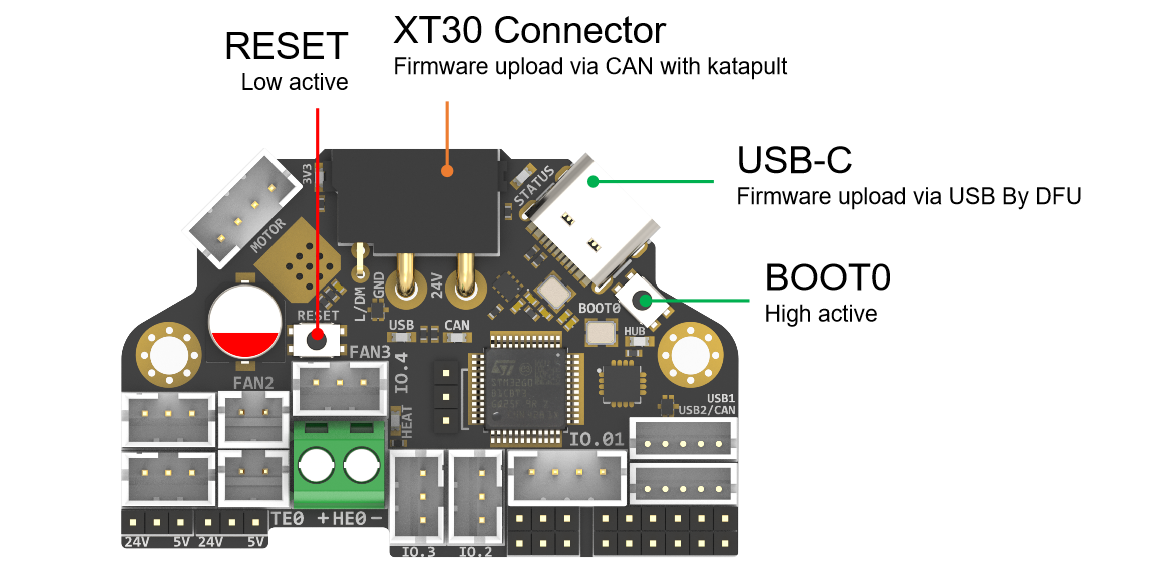
Before executing the following commands, you need to enter DFU mode before you can compile and burn the firmware. As shown in the figure above,
- press and hold BOOT0,
- then press the RESET button for one second,
- then release RESET,
- wait for 3 seconds,
- and release BOOT0.
Use " lsusb" to check if a DFU device appears. If yes, upload firmware. If no, repeat the above steps.
make flash FLASH_DEVICE=0483:df11
under katapult Klipper uploading, Please refer to:
https://github.com/Arksine/katapult?tab=readme-ov-file#uploading-klipper
Attachments And Other Documents
2D,3D , SCH and config template file, please go to our github:
https://github.com/FYSETC/H36_Combo
FAQ
1.Why I can't enter the DFU mode?
There are two reasons:
- The operation of boot0 and reset buttons may be incorrect, or the buttons are damaged.
Solution:
- A. Repeat the above tutorial;
- B. Unplug all the cables of the board, press BOOT0, insert USB-C, wait for a few seconds, and the computer/PI will recognize the DFU device
- C. If the above method does not work, use the multimeter beep position to measure the BOOT0 and RESET buttons to ensure that they are in different states when pressed and released. If they are in the same state, the buttons are physically damaged, please contact the place of purchase for replacement.
- STM32G0B1 is different from other STM32s. Its mode of entering DFU is set to software operation at the factory. We need to change its BOOTSEL configuration bit during production and change it to enter DFU through hardware switching, that is, key.
If you encounter a situation where the key operation cannot enter DFU, then this step may have been missed during factory production. The solution is to use STLINK/Jlink to configure this BOOSEL bit (If you don't have STlink/Jlink or have no way to solve this problem, you can contact our customer service for help!).
The specific operation is as follows:
- A. Prepare an STLINK/Jlink. The following takes STLINK as an example. JLINK is similar;
- B. Connect STLINK through the two test points on the back of H36, CLK and DIO, and any GND and 3.3V/5V power supply on the board:
CLK <-----> SWCLK
DIO <-----> SWDIO
3.3V/5V <-----> 3.3V/5V
GND <-----> GND
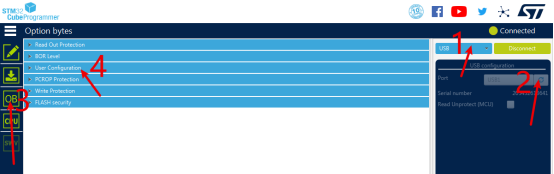
- C. Connect STLINK to the computer and set STLINK as follows: (STM32CubeProgrammer software is used here, you can download it from ST official website)
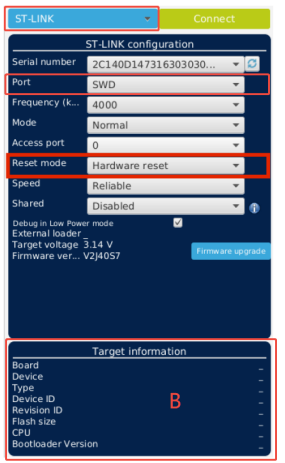
- D. Click CONNECT, you will see your G0B1 device in area B. If any error is prompted, please return to check the wiring sequence and power supply;
- E. Click the "OB" icon ----> User Configration, scroll down to find the "nBOOT_SEL" option, click the box on the right, and cancel the selection here, that is, make sure there is no "check mark" here;
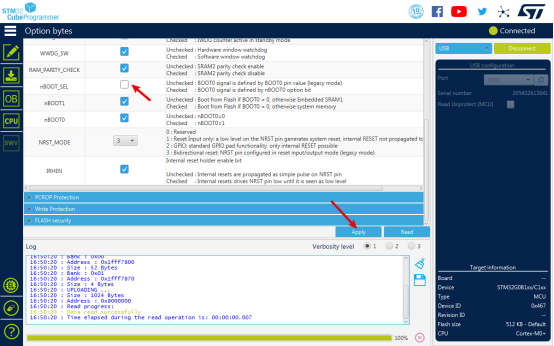
- F. Click the "Apply" button below to apply the setting;
- G. To ensure correct operation, it is recommended to unplug the USB cable of STLINK at the computer, plug it in again, and repeat the above operation to ensure that the "nBOOT_SEL" option has been correctly changed.
Through the above operation, G0B1 can enter DFU by pressing the button.
Where To Buy
Technical Support Channel
Updated on: 18/02/2026
Thank you!